Gmail photo attachments
Photos too large for Gmail? Make them fit the 25 MB limit
Gmail allows 25 MB of attachments per email in total, not per photo. Above that, it swaps the files for a Google Drive link. To send real attachments, make smaller copies — for example with the compressor set to 2 MB JPEG — so that all files together stay under about 20 MB. If the recipient needs the untouched originals, send the Drive link instead.
Files are processed locally.
On this page
How Gmail counts the 25 MB
- Personal Gmail account
- 25 MB for all attachments of one email together
- Above the limit
- Gmail removes the attachments and inserts a Google Drive link
- Work or school account
- The limit is set by the administrator
Checked on 4 October 2026: Gmail Help: attachment size limits
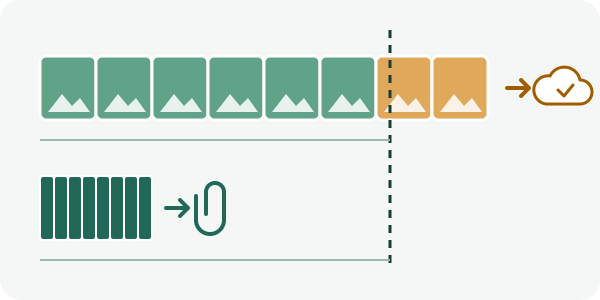
Which route fits your email?
- 1 to 5 photos: compress each one. Divide about 20 MB by the number of photos to get each photo's target: 2 photos → 10 MB each, 5 photos → 4 MB each. The remaining room is a buffer for the text and any other files.
- 6 or more photos: resize them together. Batch resize images takes up to 25 photos at once. Choose “Fit within maximum dimensions” and enter 2000 × 2000 px: a 12-megapixel phone photo (4000 × 3000 px) becomes 2000 × 1500 px, a quarter of the pixels, which is plenty for viewing on a screen. Download the ZIP, unpack it and attach the photos.
- Originals needed (printing, editing): use Drive. Let Gmail insert the Drive link, or share the files from Google Drive. Before sending, make sure the recipient is allowed to open them.
Make a smaller copy with the compressor
- Keep your original. Open the target-size compressor and choose the photo (JPG, PNG or WebP).
- Under “Maximum file size”, enter the target you worked out, for example 2 MB. Leave the dimension fields empty for now.
- If the photo is a PNG, open “Further requirements” and set “Allowed format” to “JPG required”. Otherwise the copy becomes WebP; JPG opens on every device.
- Tap “Prepare image”, then “Download result”, and attach that downloaded copy in Gmail. Before sending, check that Gmail shows the files as attachments, not as a Drive link.
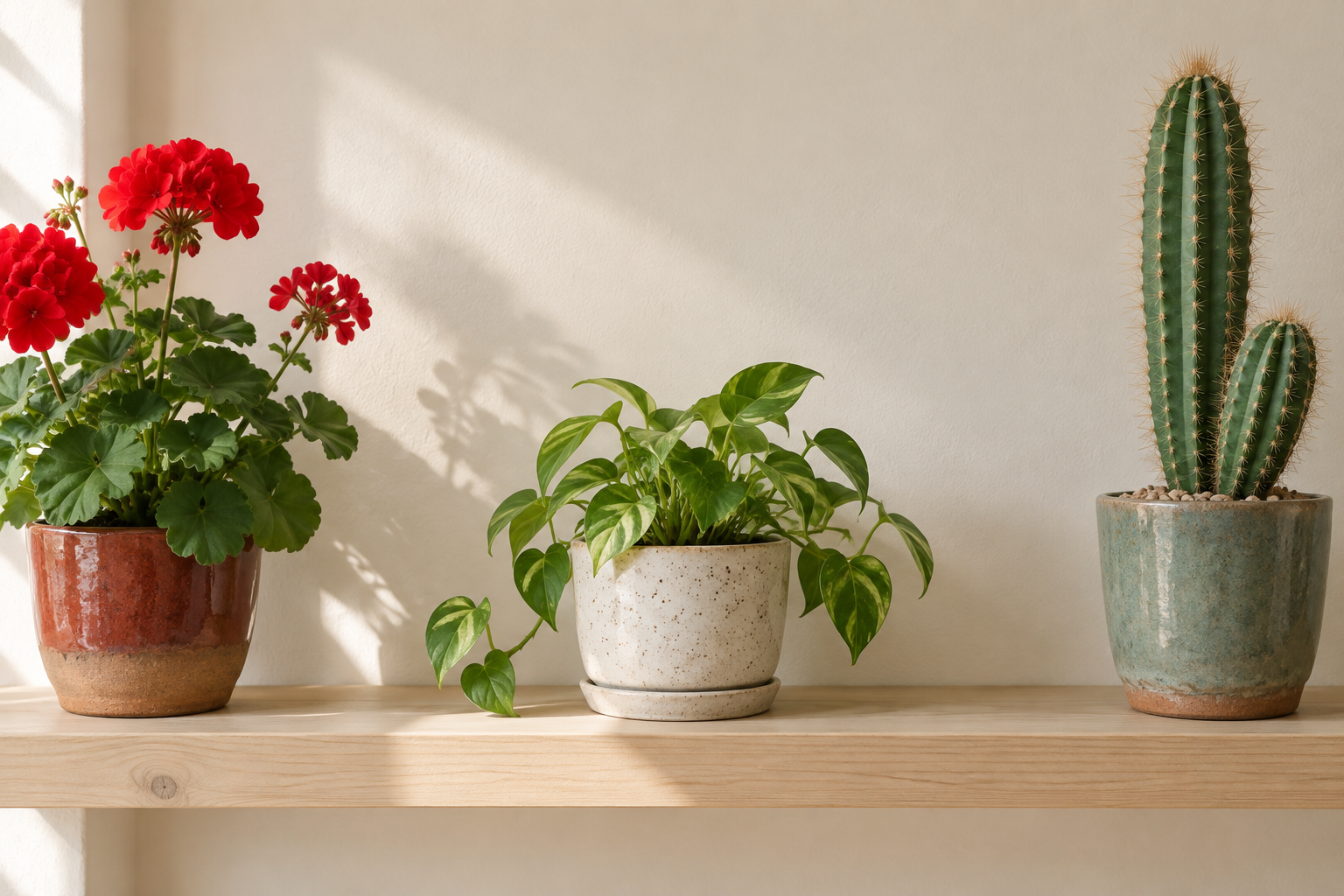
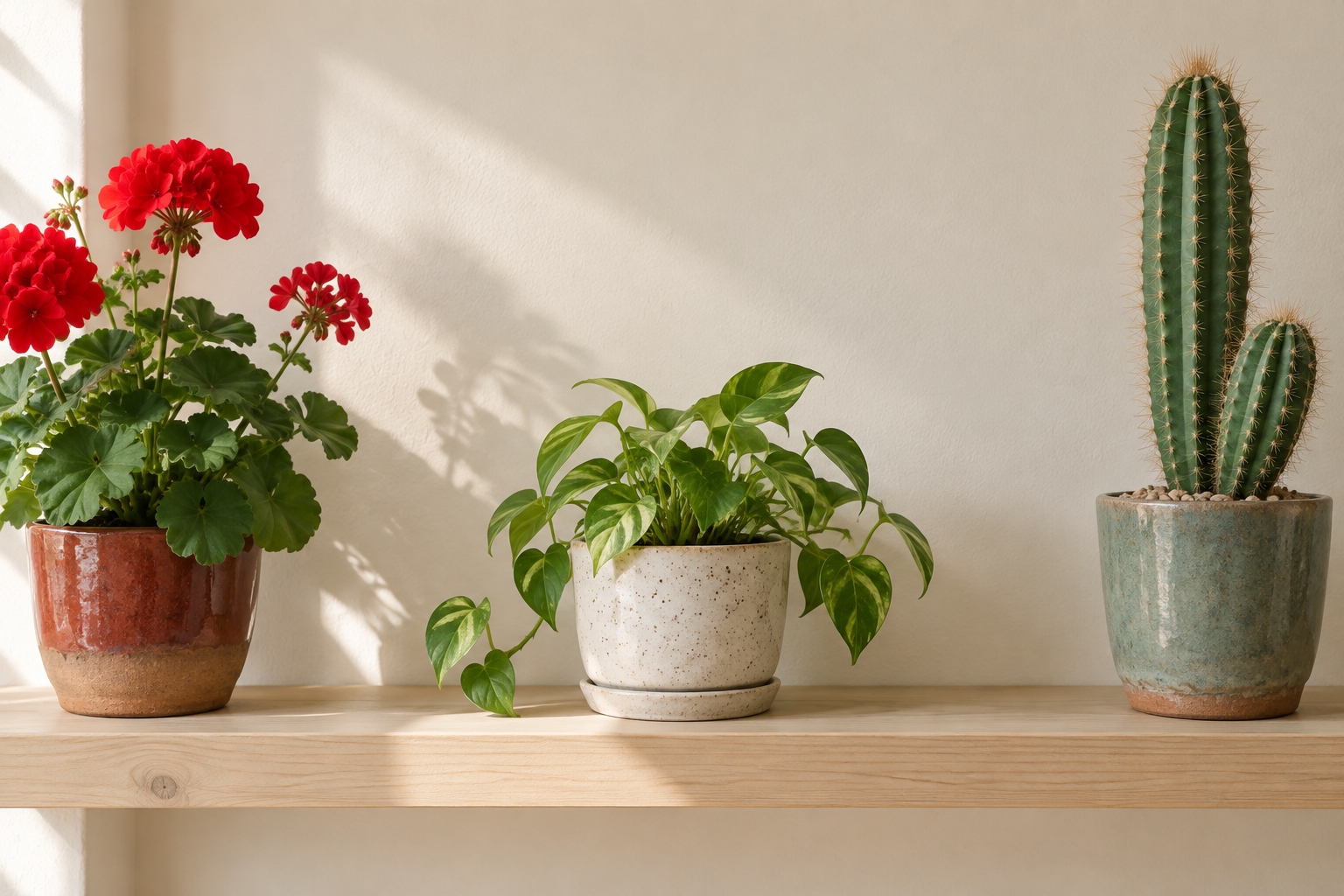
Example file from our compressor page (Refentra sample photo, 1536 × 1024 px, JPG required, 1 MB target):
Both files have the same pixel dimensions. Byte counts checked on the downloadable files on 4 October 2026; your photo will give different numbers. PNG · JPG
When compressing will not help
- The attachments are already under 25 MB but sending still fails: check Gmail's exact error. Full Google storage, a blocked file type or a connection problem cannot be fixed by compressing.
- Videos, PDFs and animated GIFs: this compressor handles still images only. Send them as a Drive link.
- iPhone HEIC photos: this compressor opens them up to 16 megapixels. For a larger HEIC photo, first make a JPG copy (see the HEIC to JPG guide), or use the Drive link.
- The recipient needs the exact original file (for example for printing or evidence): do not compress it; use Drive.
Uploading to a website instead of emailing? See image too large to upload.
Sources
Gmail's limits were checked against Google's help pages on 4 October 2026. Refentra is independent of Google. Your photos are processed in your browser and are not uploaded to Refentra; you attach the copy in Gmail yourself. This guide was drafted with AI assistance and checked against the linked help and the current tools. Gmail Help: attachment size limits · Gmail Help: send Drive files