Image basics
JPG, PNG or WebP? How to choose the right image format
Quick answer: use JPG (or WebP) for photos, PNG (or lossless WebP) for screenshots, text and anything with a transparent background, and SVG for logos and icons drawn from shapes. If a form, an e-mail or an old program is picky, JPG for photos and PNG for graphics are the safest choices. Need a different format? Convert it with the Refentra tools linked below, in your browser. Converting never brings back detail that is already lost.
Files are processed locally.
On this page
Two questions decide almost everything
1. Is it a photo or a graphic? Photographs are made of smooth colour transitions, so the format can drop tiny details you will not notice (lossy compression: JPG, lossy WebP). Screenshots, diagrams, logos and text have hard edges; lossy compression leaves blurring and coloured fringes there, so they need lossless formats (PNG, lossless WebP).
2. Does it need transparency or animation? JPG cannot store transparent pixels and cannot animate. PNG and WebP can store transparency; WebP and AVIF can also animate. GIF is the oldest animation format and the least efficient.
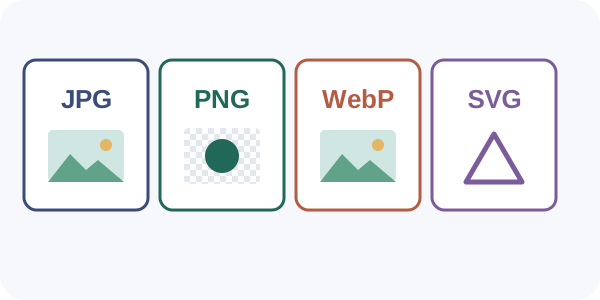
Which format for which job
- Photo for a website or sharing
- WebP or JPG (AVIF where supported). Lossy WebP is on average 25–35 % smaller than JPEG at similar quality.
- Screenshot, text, diagram
- PNG. Lossless WebP is on average about 26 % smaller than PNG.
- Needs a transparent background
- PNG or WebP. JPG has no transparency.
- Logo or icon made of lines and shapes
- SVG. It scales to any size without blurring; it is not for photos.
- Short animation
- Animated WebP or AVIF. Use GIF only when nothing else is accepted.
- Forms, e-mail, older programs
- JPG for photos, PNG for graphics. Check the accepted formats first.
Source: MDN, Image file type and format guide, checked 5 October 2026. Savings are averages from that page; your files will differ. Refentra is not affiliated with MDN.
Mistakes that cost quality or size
- Converting JPG to PNG to “improve quality”. The picture stays exactly as soft as it was, but the file gets much bigger.
- Saving a screenshot as JPG. Text gets blurry edges and coloured fringes. Use PNG.
- Using PNG for photos. The file is often several times larger than a JPG with no visible gain.
- Re-saving the same JPG again and again. Each save loses a little more. Keep the original and export a copy once.
- Sending WebP where only JPG or PNG is accepted. Convert it first, see below.
Convert in your browser
- JPG to PNG and PNG to JPG (for transparent areas you confirm a background colour).
- WebP to JPG and WebP to PNG when a site or program refuses WebP.
- Image to WebP and image to AVIF for smaller website files.
For your own website
MDN recommends preferring WebP or AVIF for raster images and adding a JPEG or PNG fallback for browsers that cannot show them. The picture element does that:
<picture>
  <source srcset="photo.avif" type="image/avif" />
  <source srcset="photo.webp" type="image/webp" />
  <img src="photo.jpg" width="1200" height="800" alt="…" />
</picture>
Width and height attributes keep the layout from jumping while images load. Also see fixing PageSpeed image warnings.
Sources and method
Format properties and recommendations come from the linked MDN page, checked on 5 October 2026. Tool names and limits were checked against the current Refentra tools. This guide was drafted and edited with AI assistance.