Image guides
Remove the location from a photo before you share it
For a JPEG, open the photo metadata remover, choose the photo, select Remove personal metadata and download the copy; the file is not uploaded. On an iPhone you can instead tap Options in the share sheet and turn off Location before sending. Either way, check the copy afterwards with the metadata viewer.
Files are processed locally.
On this page
Where the location is stored
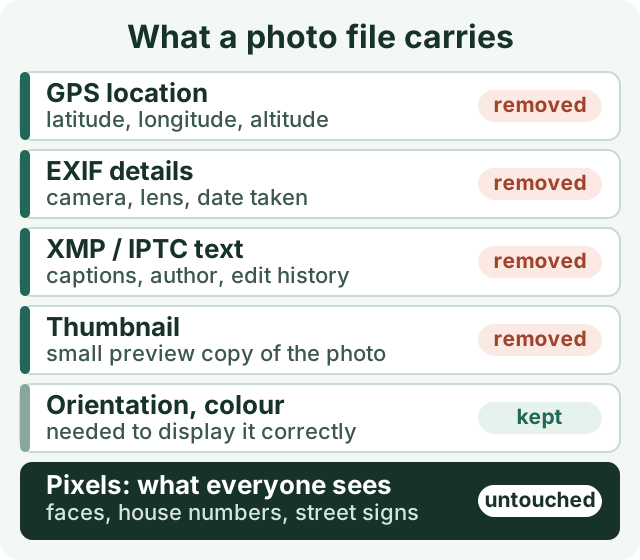
When a phone camera is allowed to use location, it writes GPS coordinates into the photo file itself, next to other hidden details. Anyone who receives the original file can read them with ordinary software. The picture you see is a separate layer that no metadata tool changes.
Check whether your photo has location data
- Open the metadata viewer and choose the photo. It reads JPEG, PNG, WebP, TIFF, HEIC and AVIF locally.
- Look for GPS tags detected and a field named EXIF · GPS. If either appears, the file carries a location.
- Also note author, date and camera fields: decide whether the person receiving the file needs them.
If no GPS field is listed, that is a good sign but not a guarantee: the viewer says so itself, because some container structures are not interpreted. On an iPhone, swiping up on a photo in the Photos app shows its location too.
Remove it in your browser
- Open the photo metadata remover and choose one JPEG (up to 25 MiB).
- Under Finding, check what was found, for example Location data (GPS) with the coordinates masked.
- Select Remove personal metadata. The tool re-reads the result and lists every check, such as "Location data (GPS) removed and independently re-read" and "Decoded rendering identical".
- Select Download metadata-removed JPEG and send that copy, not the original.
You can try it with our synthetic sample photo with GPS tags. Measured with Refentra's tools:

The remover took out 222 bytes of personal metadata and kept only the orientation tag and a JFIF marker so the photo displays the same way. The image data itself is copied unchanged, so there is no quality loss.
HEIC, PNG or WebP? The PNG, WebP and HEIC metadata remover handles simpler files of these types, but rejects structures it cannot clean safely, such as HEIC files with depth images. For an iPhone HEIC up to 48 MP, converting it with the HEIC to JPG converter also works: the JPG copy contains none of the original metadata.
On your phone: share without location
If you send photos straight from your phone, the built-in options can be quicker. They work as follows according to Apple and Google:
- iPhone: send one time without location
- Photos › Share › Options › turn off Location. “Location Not Included” then appears above Options.
- iPhone: remove it from the photo
- Open the photo › More › Adjust Info › Adjust Location › No Location
- iPhone: stop recording it
- Settings › Privacy & Security › Location Services › Camera › Never
- Google Photos: shared albums, links, conversations
- Do not include location by default (partner sharing is the exception); can be turned on per album or link.
- Google Photos: downloading or emailing a photo
- Keeps the original location saved by the device, even if you edited the location in Google Photos. A location added by the camera cannot be removed there.
Apple Personal Safety User Guide, Google Photos Help: location data and editing locations, checked 2026-10-04.
Verify the copy you send
- Open the downloaded copy, not the original, in the metadata viewer.
- Confirm that GPS tags detected and EXIF · GPS no longer appear.
- Check that the photo is upright and looks the same.
- Keep the original private if you still want the location for yourself.
For a second opinion on a computer, the free command-line tool ExifTool lists all GPS fields with exiftool -gps:all cleaned-photo.jpg; no output means none were found.
What removing metadata does not hide
A photo can give away a place through what it shows: a house number, a street sign, a school logo, a view from a window or a reflection. The filename and the account you post from can do the same. Before posting, look at the photo at full size and cover what should stay private with the redaction tool (use its solid cover; blur and pixelation do not securely hide information) or remove it with the crop tool.
To change rather than remove details such as the author or caption, see editing photo metadata.
This guide was written with AI assistance. The tool steps and measurements were checked against Refentra's current tools; the phone settings come from the linked Apple and Google help pages.