Image guides
Edit a JPEG's date taken, author or caption
Open the JPEG metadata editor, choose the photo, type the new value into the field you need and select Save changes. For the date taken, use the format 2025:07:14 18:05:00. The editor writes a copy in your browser without uploading the file or touching the picture itself.
Files are processed locally.
On this page
The five fields you can change
- Image description: a caption, such as what or who is in the picture.
- Artist: the photographer or creator.
- Copyright: a credit or rights notice. It records text; it does not prove ownership.
- Date taken: the capture time stored in the file (EXIF DateTimeOriginal).
- User comment: a free note.
Each field takes up to 4,096 bytes of text. Everything else in the file, including GPS location and camera details, stays exactly as it was.
Step by step
- Open the JPEG metadata editor and select Choose one JPEG file (one
.jpgor.jpeg, up to 25 MiB). - Under Five editable fields, each field shows its Previous value. Type into New value only for the fields you want to change.
- For Date taken, write year, month, day, then the time with colons:
YYYY:MM:DD HH:MM:SS, for example2025:07:14 18:05:00. - Select Save changes. Under Result, each field is marked as newly set, changed or unchanged, and the Integrity evidence list should show a tick for every check, including "Decoded rendering identical".
- Select Download metadata-edited JPEG. Your original file is not changed.
A worked example you can download
The original sample JPEG (1536 × 1024 px, synthetic picture) has all five fields empty. The editor produced the edited copy with the description Three sample plants, the artist Refentra example and the fictional date 2026:09:09 12:00:00, plus a copyright and a comment.


The 254 extra bytes are the new text. An independent check with Pillow 12.2.0 confirmed the same dimensions and identical pixels in both files.
Why your gallery may still show the old date
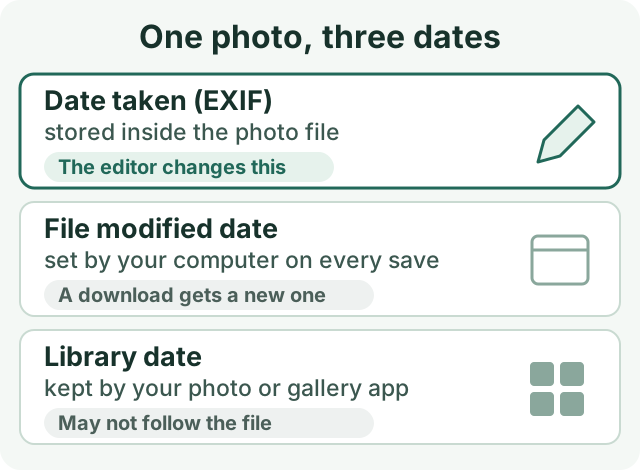
If a photo still sorts under the wrong day, the edit has usually worked; you are looking at one of the other two dates. A downloaded copy always gets a new file date. Photo apps that already imported the original often keep their own date, so import the edited copy as a new item, or use the app's own date adjustment if you only need the order inside that app to be right.
What the editor does not do
- It does not remove location. GPS data is kept and shown with a warning. To remove it, see removing location data.
- Clearing a field leaves an empty field, not a deleted tag. That is not a privacy cleanup.
- Other metadata blocks keep their values. XMP or IPTC blocks can hold their own caption, author or date, and some apps show those instead.
- Later edits can drop your values. Resizing or converting re-encodes the image, and the new file does not automatically carry the edited fields.
- JPEG only. A HEIC photo has to be converted first with the HEIC to JPG converter, which starts the JPG without the old metadata; add the fields afterwards.
On a computer, ExifTool gives a second, independent view: exiftool -a -G1 -s photo.jpg lists every tag with the block it comes from, which helps when two blocks contain different values.
This guide was written with AI assistance. The steps, labels and the example were checked against Refentra's current editor and metadata viewer.