Image to PDF guide
Combine photos and screenshots into one PDF
Quick answer: open the image-to-PDF tool, choose all your images at once, put them in order with the ↑ and ↓ buttons, keep A4 and "Auto for each image" unless you were told otherwise, and select Create PDF. Each image becomes one page. The images stay on your device; nothing is uploaded.
Files are processed locally.
On this page
Step by step
- Choose images. Select 1–25 JPEG, PNG or static WebP files in one go (each up to 25 MiB). iPhone photos in HEIC format are not accepted here: convert them first with HEIC to JPG. Already have PDFs? Use merge PDF pages instead.
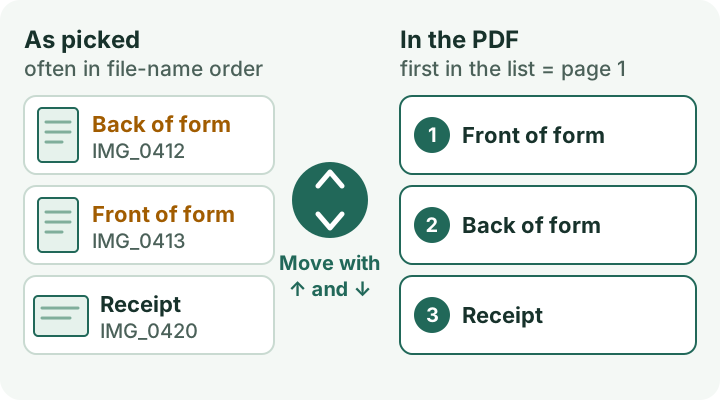
- Fix the order. The list "Pages in PDF order" is the PDF: the first row becomes page 1. Use ↑ and ↓ to move a page, ⟳ to turn a sideways photo by 90°, and × to drop duplicates or blurry shots.
- Pick the page size. A4 is preselected. Choose Letter if the recipient is in the US or Canada, or "Fit each page to its image" if nobody will print it (see below).
- Leave orientation on "Auto for each image". A wide receipt then gets a landscape page and a tall form a portrait page in the same PDF.
- Set a file size limit only if you have one. If a portal says "maximum 2 MB" or similar, follow the PDF size limit guide. Otherwise keep "No size limit" for the best quality.
- Create PDF, then check it. Step through the preview with ← and →. It shows each page as it is in the finished file, with its size in millimetres. Then select Download PDF.
Which page size to choose
- A4 (210 × 297 mm) – the paper size used almost everywhere outside North America. Safe default for offices, schools and insurers.
- Letter (8.5 × 11 in) – the standard in the US and Canada.
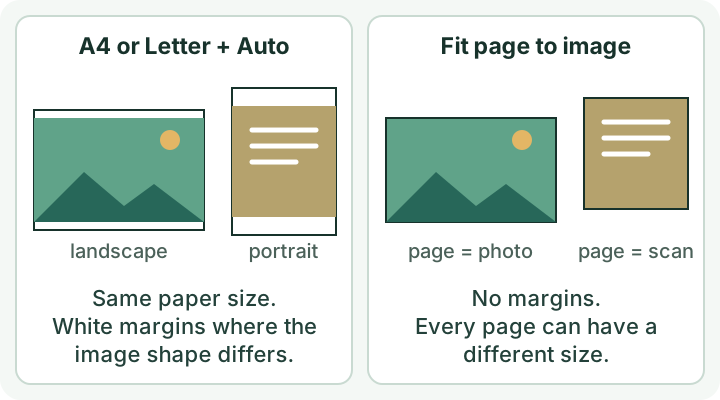
- Fit each page to its image – no white margins, but every page takes the shape of its image, so pages can differ in size. Fine for viewing on screen; for printing, prefer A4 or Letter. The orientation choice is switched off in this mode.
On A4 and Letter the whole image is scaled to fit and centred. Nothing is cropped or stretched, so an image with a different shape than the paper gets white margins.
Before you send it
Photos of paper often include the table, shadows or a tilted page. If that makes text hard to read, crop each image first with the image cropper, or use the document scanner, which lets you set the page corners and straightens each page before building the PDF.
Transparent areas in PNG or WebP images become white, because PDF pages here have a white background. The tool asks you to confirm this when it applies. Check pale logos or screenshots made for a dark background.
What this PDF cannot do
- No searchable text. Each page is a picture. You cannot search, copy or select the words until an OCR (text recognition) program adds a text layer. If the recipient needs that, run the finished PDF through an OCR tool and check names and numbers it recognized.
- Images are re-saved as JPEG inside the PDF (quality 92 without a size limit). Fine detail can soften slightly; a blurry photo stays blurry. Use the sharpest originals you have.
- Maximum 25 images per PDF. For more pages, make two PDFs and join them with merge PDF pages.
Sources and method
Tool steps, labels and behaviour were checked against Refentra's current image-to-PDF tool on 4 October 2026. Paper sizes: ISO 216 (A series) and the U.S. National Archives dimension list (Letter). This guide was drafted and edited with AI assistance.
Related: make the PDF fit a size limit · convert iPhone HEIC photos to JPG · all image guides