Messaging and sharing
WhatsApp photos look blurry? How to send them in better quality
Quick answer: when you send a photo as a picture, WhatsApp shrinks it to save data. Choose the HD option before sending for a clearer result, or send the photo as a document to deliver the original file unchanged. For Status and profile photos there is no HD option, so prepare a sharp, well-cropped picture yourself. Photo too big or an iPhone HEIC file? Convert or shrink it first with the Refentra tools linked below; everything runs in your browser.
Files are processed locally.
On this page
What WhatsApp itself says
- Standard quality
- Uses less data and sends faster; the photo is clearly reduced.
- HD quality
- Clearer than Standard but uses more data and takes longer. It is still a processed copy, not the original file.
- Status and profile photos
- HD is not available for status updates or profile pictures.
- Photos, videos and voice messages
- Up to 16 MB per file.
- Documents
- Up to 2 GB per file; a photo sent as a document keeps its original quality.
Sources: WhatsApp Help Center, How to send media and WhatsApp Blog, 2 GB file sharing, checked 5 October 2026. The pages we checked give no exact pixel sizes, and menu names can differ by app version. Refentra is not affiliated with WhatsApp.
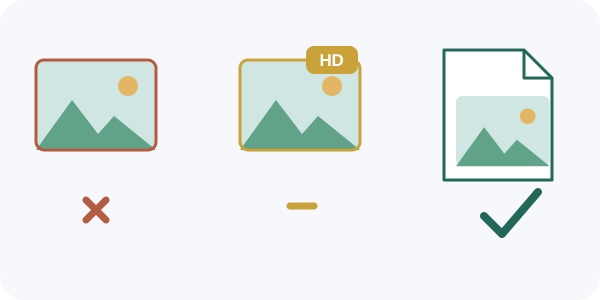
Which way to send, depending on your goal
- A nicer photo in a chat
- Switch on the HD option before sending.
- The exact original (print, editing, archive)
- Send it as a document.
- A photo over 16 MB as a picture
- Shrink it to a maximum below 16 MB, or send it as a document.
- Status
- No HD option: prepare the picture yourself (see below).
- Profile photo
- No HD option: crop a square with the face in the middle.
Method names follow WhatsApp’s own wording; button positions vary by phone and version.
Send a photo as a document
- Open the chat and tap the attachment button (the paperclip or plus).
- Choose Document instead of Photos or Gallery.
- Select the photo file. Depending on your phone you find it in a gallery view inside the picker or in the Files app.
- Send it. The recipient sees a file, not a preview, and opens or saves it to get the original.
Status and profile photos
- WhatsApp offers no HD for these, so the result is always processed. You still control the starting point: pick a sharp original, not a screenshot or a photo that was already forwarded several times.
- For a profile photo, crop to a square in the image cropper. Profile photos are shown in a circle, so keep the face and anything important near the centre.
- Avoid small text near the edges; it is the first thing to become unreadable.
Habits that make photos worse
- Saving a photo from a chat and sending it again. It was already reduced once and is reduced again.
- Taking a screenshot of a photo instead of sharing the file.
- Sending a very large photo as a picture and expecting it to stay sharp. Use HD or a document.
Sources and method
The statements about HD, Status, profile photos and file limits come from the linked WhatsApp pages, checked on 5 October 2026; we could confirm them from the official pages’ text, but not every menu path in every app version. Refentra tool steps and limits were checked against the current tools. This guide was drafted and edited with AI assistance.